Introduction
The Assistive Product Report generates the required number of resources or assistive products needed for students with disabilities across a specified number of schools. Local Government (LG) and Central Level users can use this information to estimate the budget effectively.
This user manual guides you through the process of generating an Assistive Product Report by selecting relevant filters, including Province, District, Municipality, Year, Class, and EMIS Code of the school.
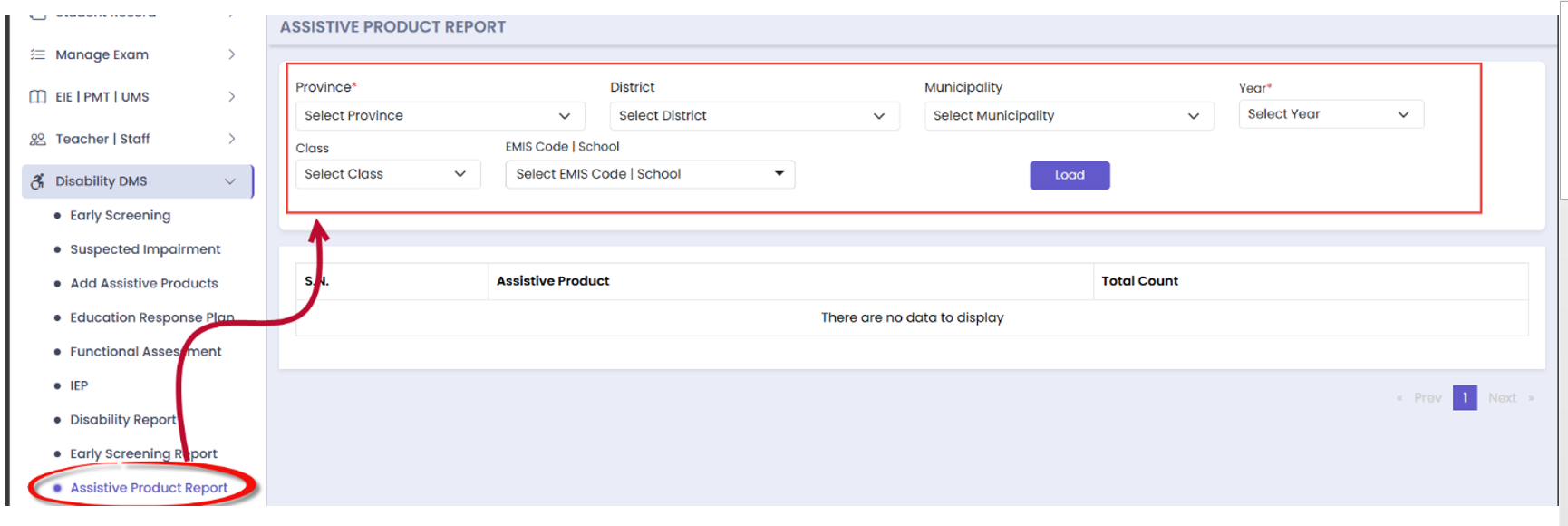
Process Overview
To view the Assistive Product Report, follow these steps:
- Click on "Disability DMS" in the menu.
- Select "Assistive Product Report" from the options.
- Choose the relevant filters such as Province, District, Municipality, Year, Class, and EMIS Code of the school.
Steps to Generate the Report
Follow the step-by-step instructions below:
- Navigate to the "Disability DMS" section.
- Select the "Assistive Product Report" option.
- Choose the filters for Province, District, Municipality, Year, Class, and EMIS Code of the school.
- Click "Generate Report" to view the assistive product data.