Referral Card Printing
Once a student with a disability is confirmed to require medical evaluation following the early screening process, this card serves as a referral card for further medical assessment.
Follow the instructions carefully to complete the process.
Steps to View/Print Referral Card
- Click on the Disability DMS.
-
Select Suspected Impairment.
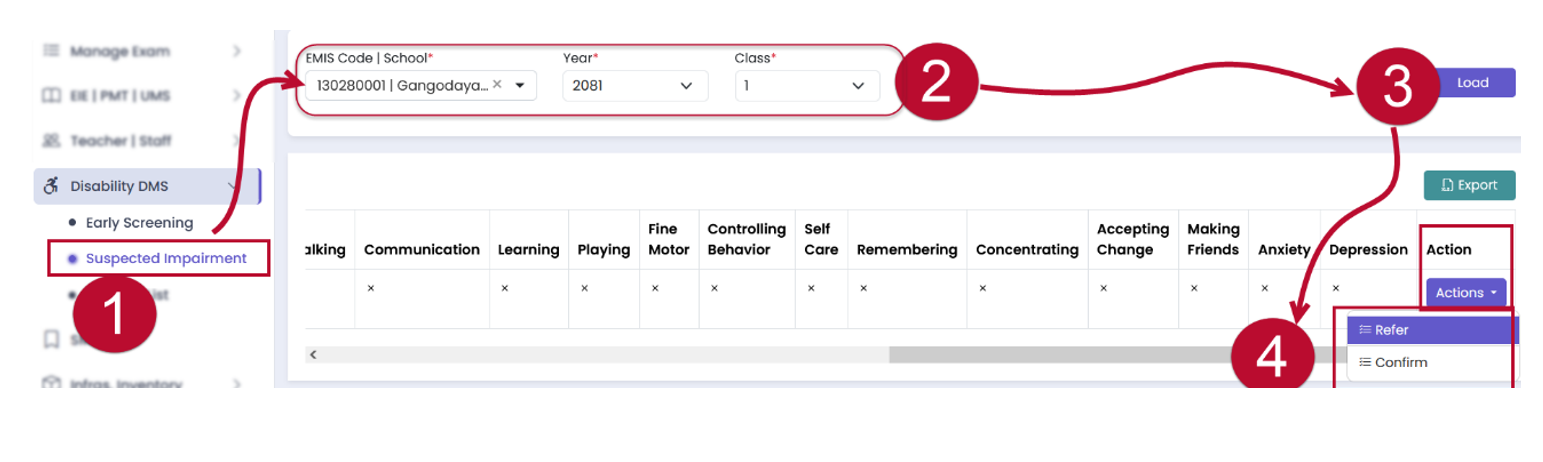
- Choose EMIS Code or School.
- Select Year and Class.
- Click on the Load button to display the required data.
- Click on the Action button and choose Refer from the dropdown list.
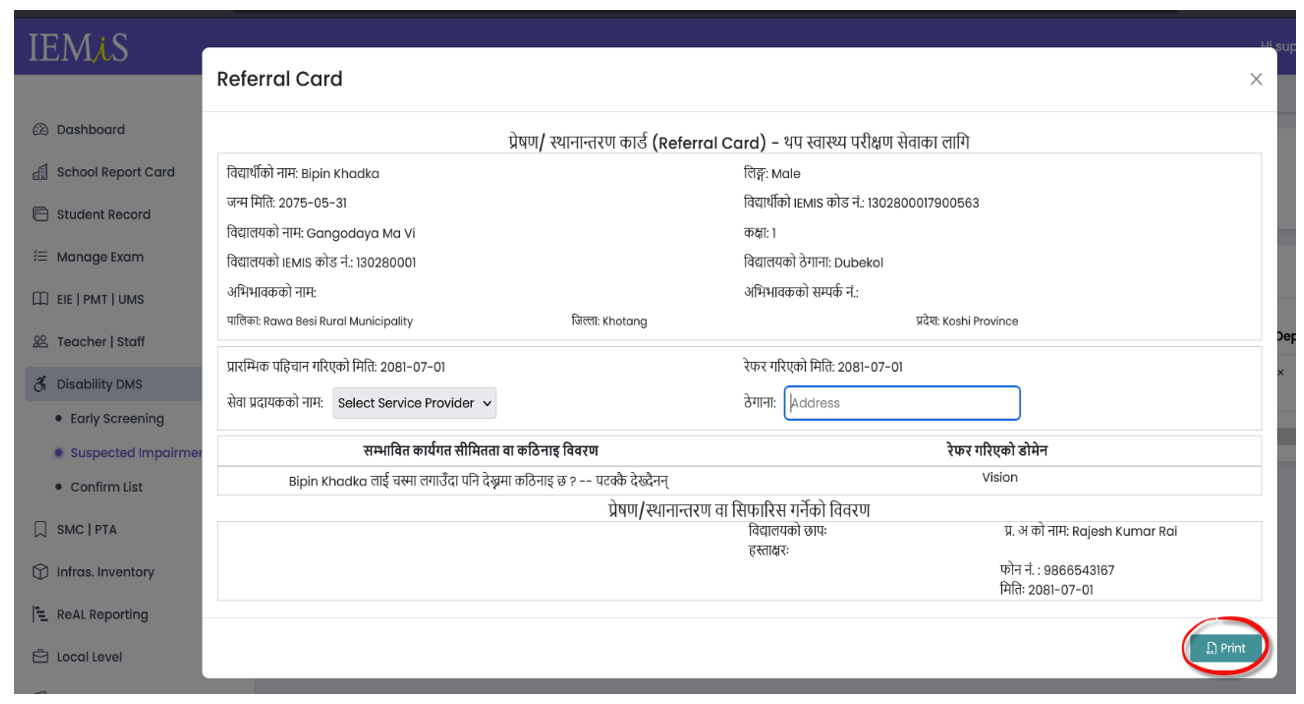
- A Referral Card will be generated, which you can print for the referral process.

Video Tutorial
Quiz
1. What button do you click to display required data?
2. What do you select from the dropdown list to generate a Referral Card?